msgyard /access insight
RabbitMQ plugin · rabbitmq_access_insight

Know who connects to RabbitMQ, and how.

Every account against actual logins, every login by result and authentication method, every session — kept on each node, surviving restarts, shown in the management UI you already use.

RabbitMQ 3.12 – 4.3Erlang/OTP 25 – 28AMQP 0-9-1 · MQTT · STOMP · AMQP 1.0 (4.x)MPL-2.0
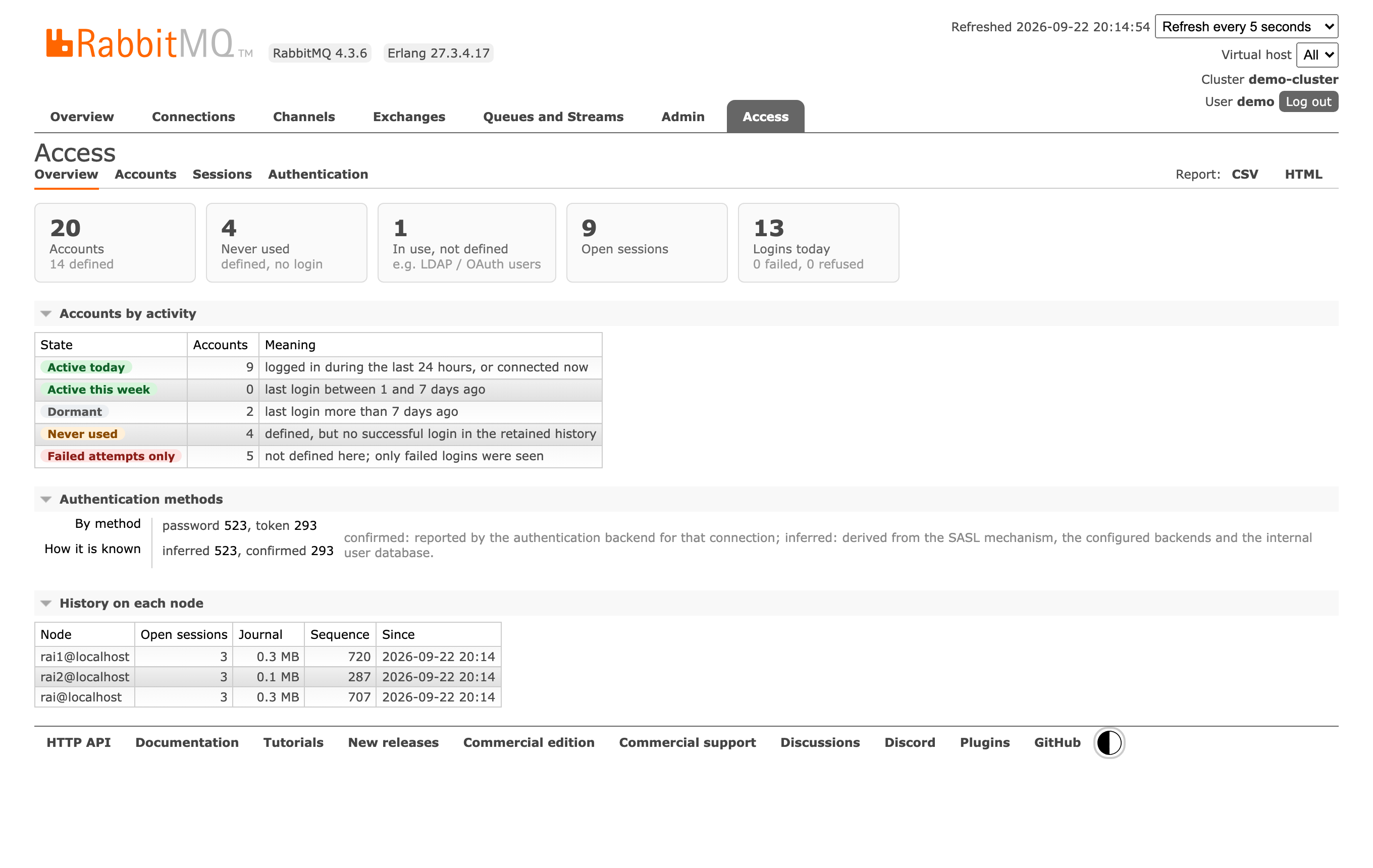
Management UI › Access
The Access overview: accounts by activity, authentication methods and the history kept on each node of a three-node cluster
What it shows

The questions an audit, a migration or an incident asks first.

Which accounts are really used?

Every account defined in the cluster next to what actually logged in: last login, sessions, time online, sources, clients.

  • Never used accounts, ready to remove.
  • Dormant ones, last seen weeks ago.
  • Accounts in use but not defined here — LDAP or OAuth 2 users.
  • Names that only ever failed, like a password-guessing run.
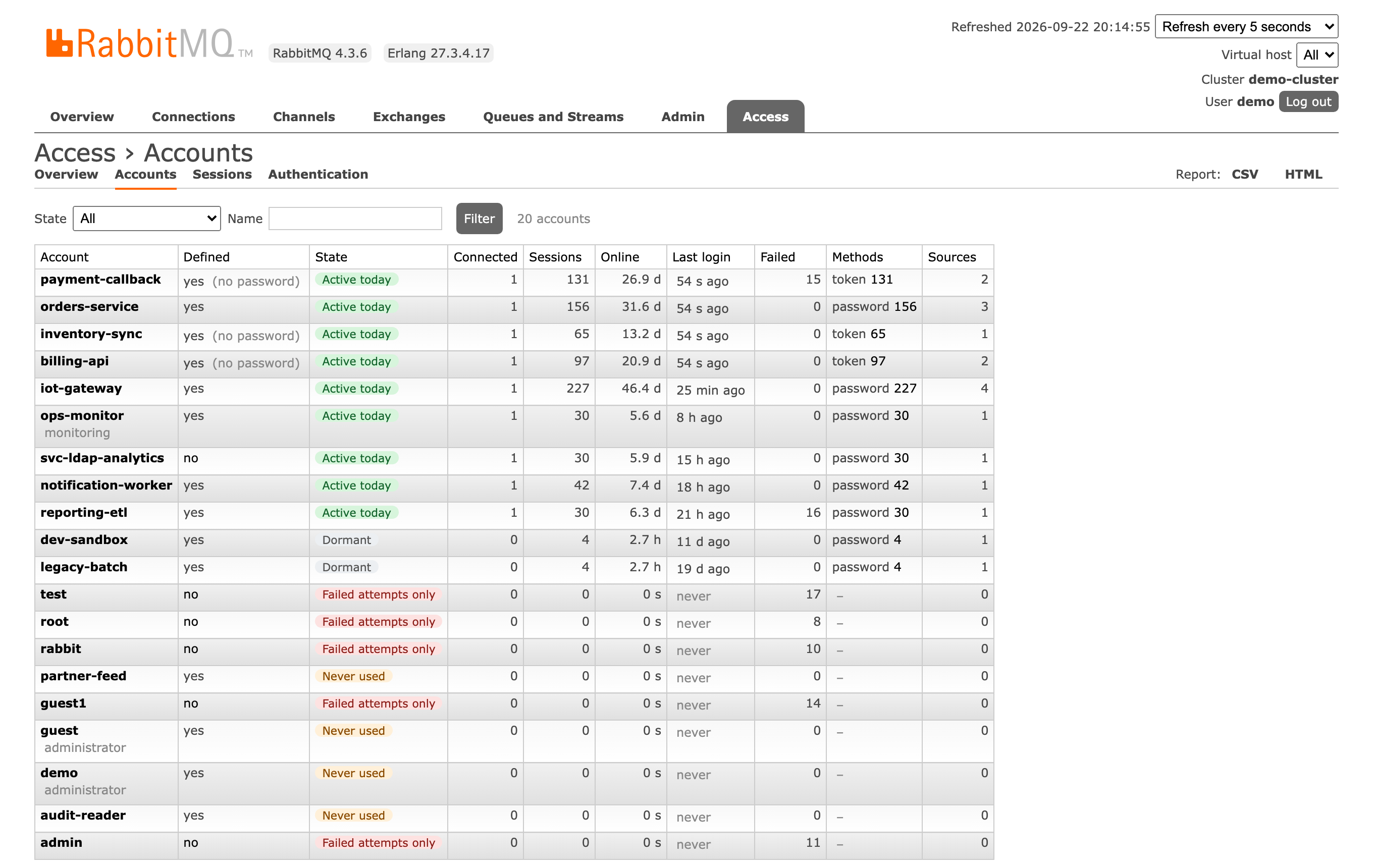
Access › Accounts
Accounts table with state, sessions, time online, last login, failures and methods

How does each one authenticate?

Password, token or certificate, for every session. When the authentication backend reports the credential it verified, the method is confirmed; otherwise it is inferred from the SASL mechanism, the configured backends and the user database — and labelled as such.

Sources, clients, protocols and virtual hosts per account, with a daily history.

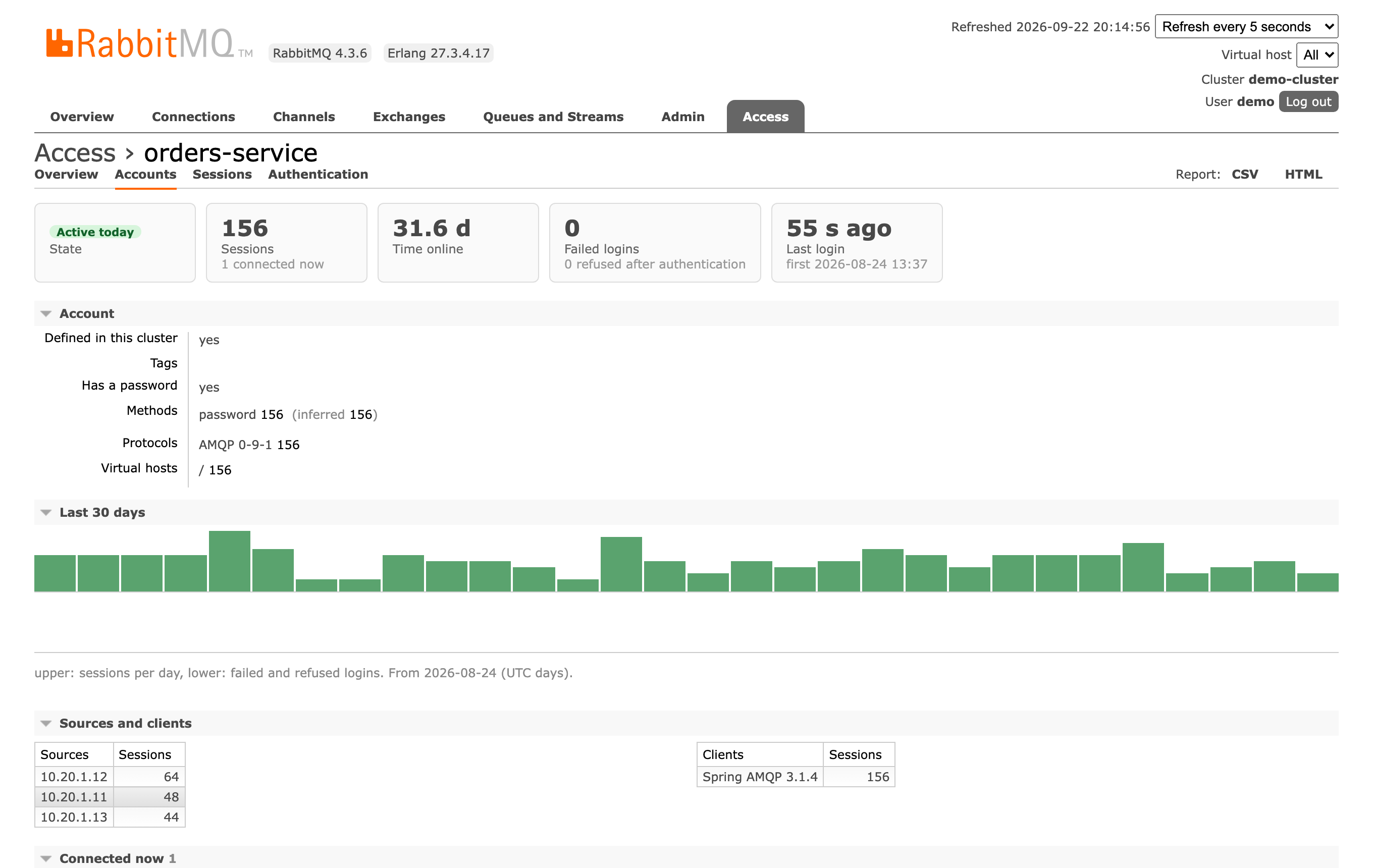
Access › orders-service
One account: sessions, time online, methods, protocols, a 30-day chart and its sources and clients

Where do logins fail?

RabbitMQ checks a login in three steps. Each failure is recorded with the step that refused it and RabbitMQ's own reason:

  • failed — the credentials were refused;
  • refused — the credentials were fine, then authorization or the virtual host said no.

By account, source and reason, per day.

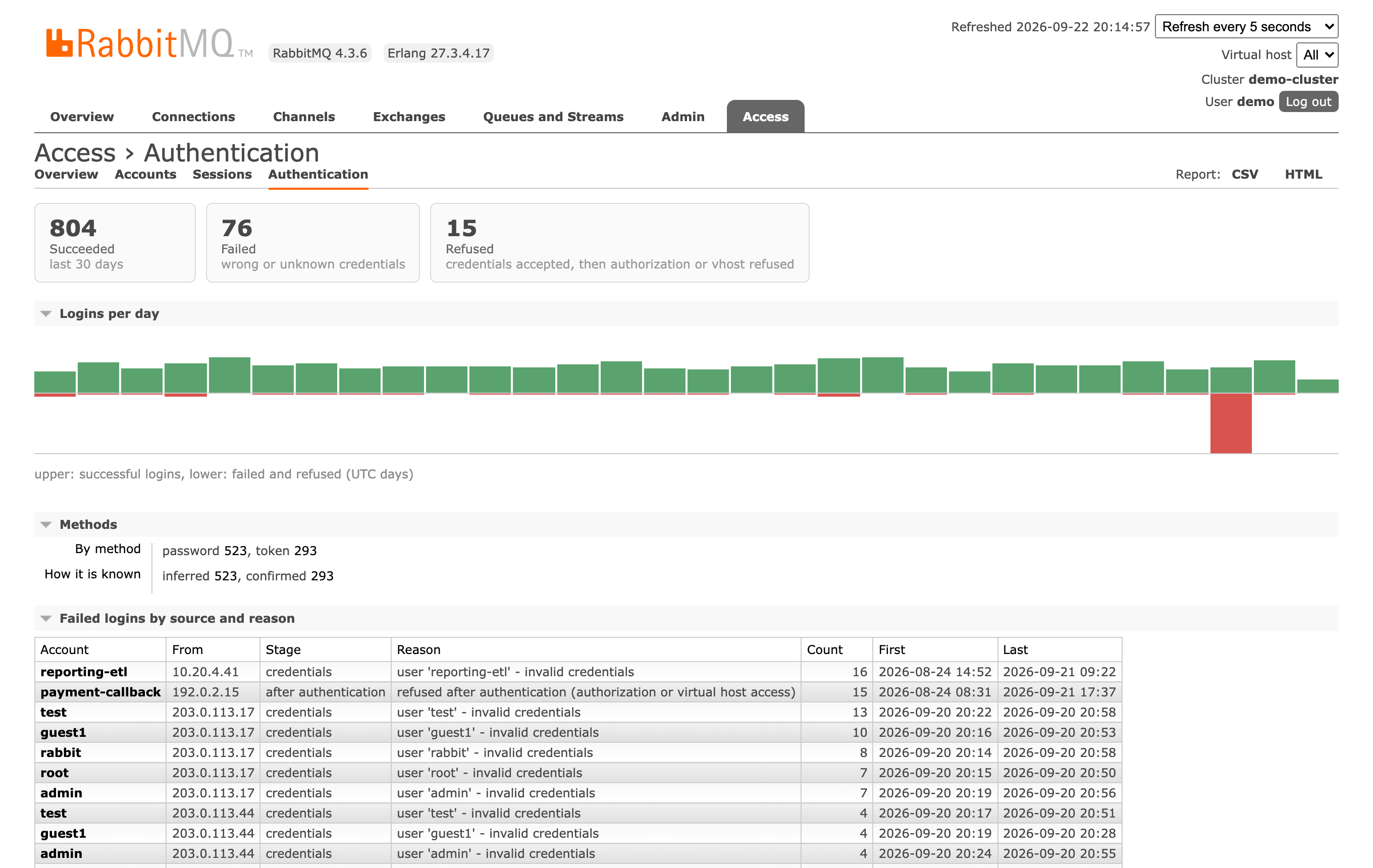
Access › Authentication
Logins per day with failures below, methods, and failed logins by account, source and reason
Measured

Cheap where it matters.

It works only when connections open and close, in its own processes, and never blocks a connection or a message.

+5.8%broker CPU per connection, RabbitMQ 4.3.6 (+6.8% on 3.12.14), under a constant open–close storm
0work per message: publishing 50,000 messages wrote no records; throughput unchanged
≤ 1 sof history a hard crash can lose — and it is marked
32 / 32three-node cluster checks: no double counting, wiped disk, stopped node, isolation, forgetting a node

Connection storm: 6,000 connections per round (open, channel, close) from six clients, three rounds with the plugin disabled and enabled in turn on the same node, CPU time of the broker process minus its idle rate. Real workloads with long-lived connections see a small fraction of this. Numbers from a laptop; reproduce them with test/perf/bench.py.

Install

Three steps, no restart.

1

Download

The .ez for your broker's Erlang/OTP: otp25, otp26, or otp27 for OTP 27 – 29.

2

Copy

Into the plugins directory of every node.

3

Enable

On every node; it picks up connections already open.

rabbitmq-plugins enable \
  rabbitmq_access_insight
WhereNeeds
Access tab in the management UIrabbitmq_managementmonitoring or administrator users
/api/access/v1/… on the management portrabbitmq_managementsame login as the management API
rabbitmq_access_* on :15692/metricsrabbitmq_prometheusnext to RabbitMQ's own metrics
127.0.0.1:15693nothingthe plugin's own status page, API and metrics

Nothing else is required: when a piece is missing, the tab and the status page say what it affects and how to enable it. It only observes — it never takes part in allowing a connection, and stores no passwords, tokens or message bodies.